A savings account with a front door to homeownership.
Buying a first home is hard to start. The rules are unfamiliar, the numbers feel out of reach, and saving competes with everything else in a paycheck.
HomeFund brings the first steps together. People learn how buying works, find out what they can afford, and save toward a down payment through payroll deductions, with contributions from their employer and lender along the way.
From first idea to tested concept.
I generated the HomeFund concept and shaped it with the product team: who it serves, what each step has to do, and how saving through payroll fits alongside learning and planning.
I designed the experience end to end, from the information architecture and flows to the visual system and the screens at every breakpoint, and took it into user testing.
Concept
- The product idea and its core flows
- Learn, plan and save in one place
- Calculators and the savings plan
With product
- Program rules turned into flows
- Employer and lender contributions
- Desktop, tablet and phone in step
Testing
- A clickable prototype of the key flows
- User testing on the core tasks
- Design decisions checked with users
Concept, prototype, test.
The concept started with a simple promise: learn, plan and save for a first home in one place. With the product team, that became a structure and a set of flows, from the first calculator to setting up a payroll deduction.
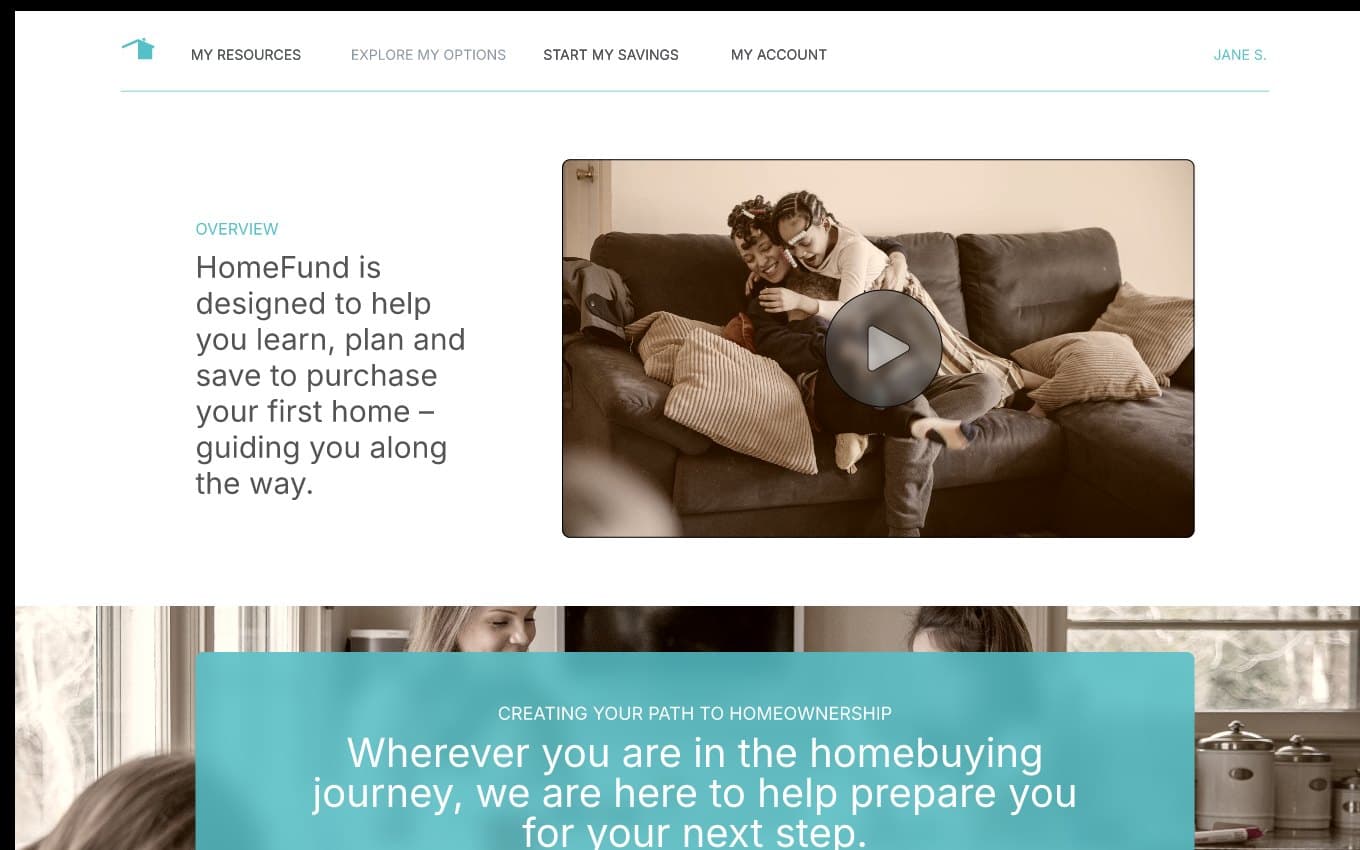
The flows were assembled into a clickable prototype covering sign-on and account setup, both calculators, the savings plan and its confirmation, and the account overview. That prototype is what we put in front of users.
What the design had to do.
One obvious next step
Plain words on every screen, and a single primary action wherever someone has to decide.
Built in from the tokens up
Contrast, target size and focus are properties of the system, so every screen inherits them.
A reason to come back
Progress, the next step to buying, and a person to talk to, after the account is open.
Learn, plan, save: one path.
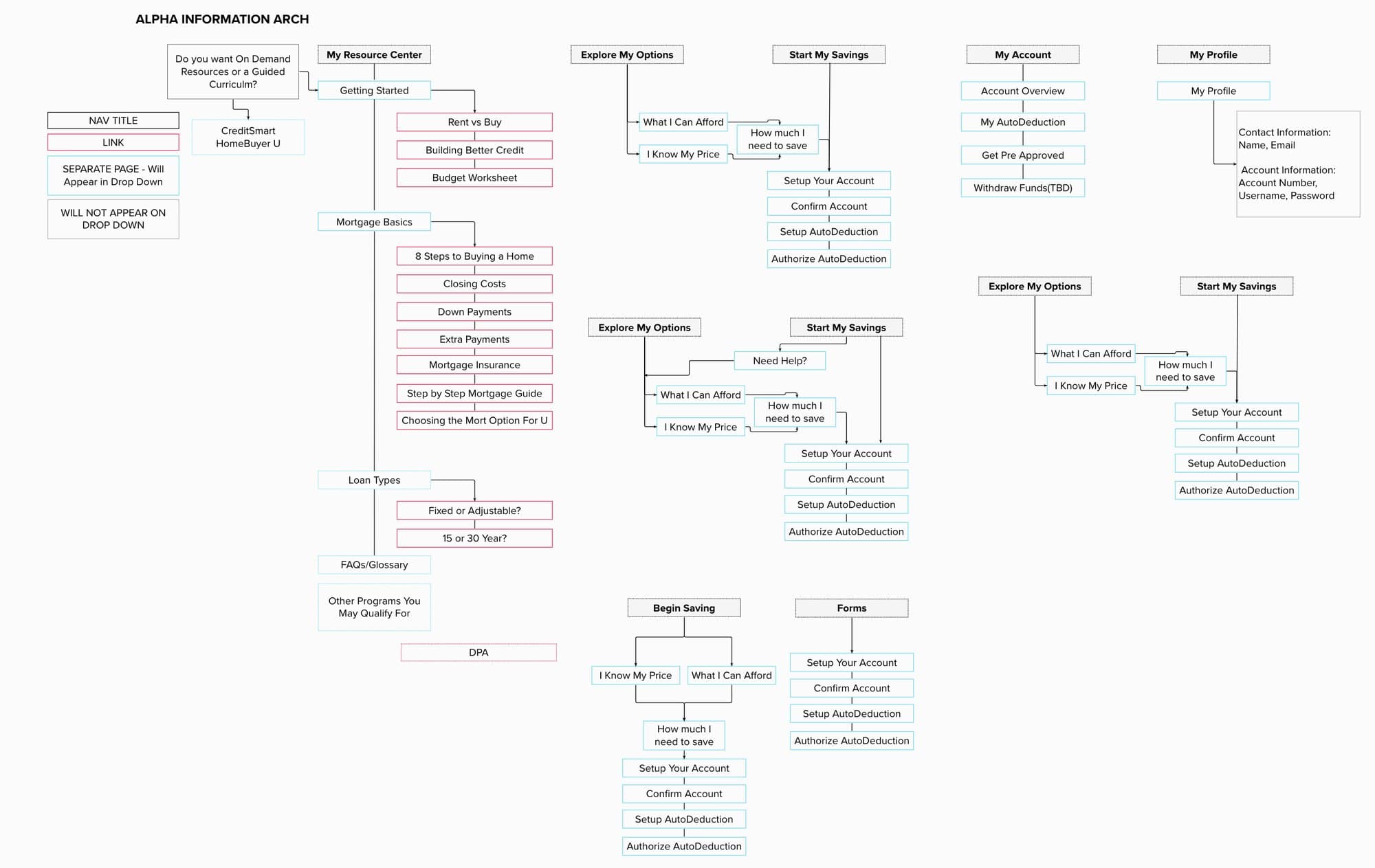
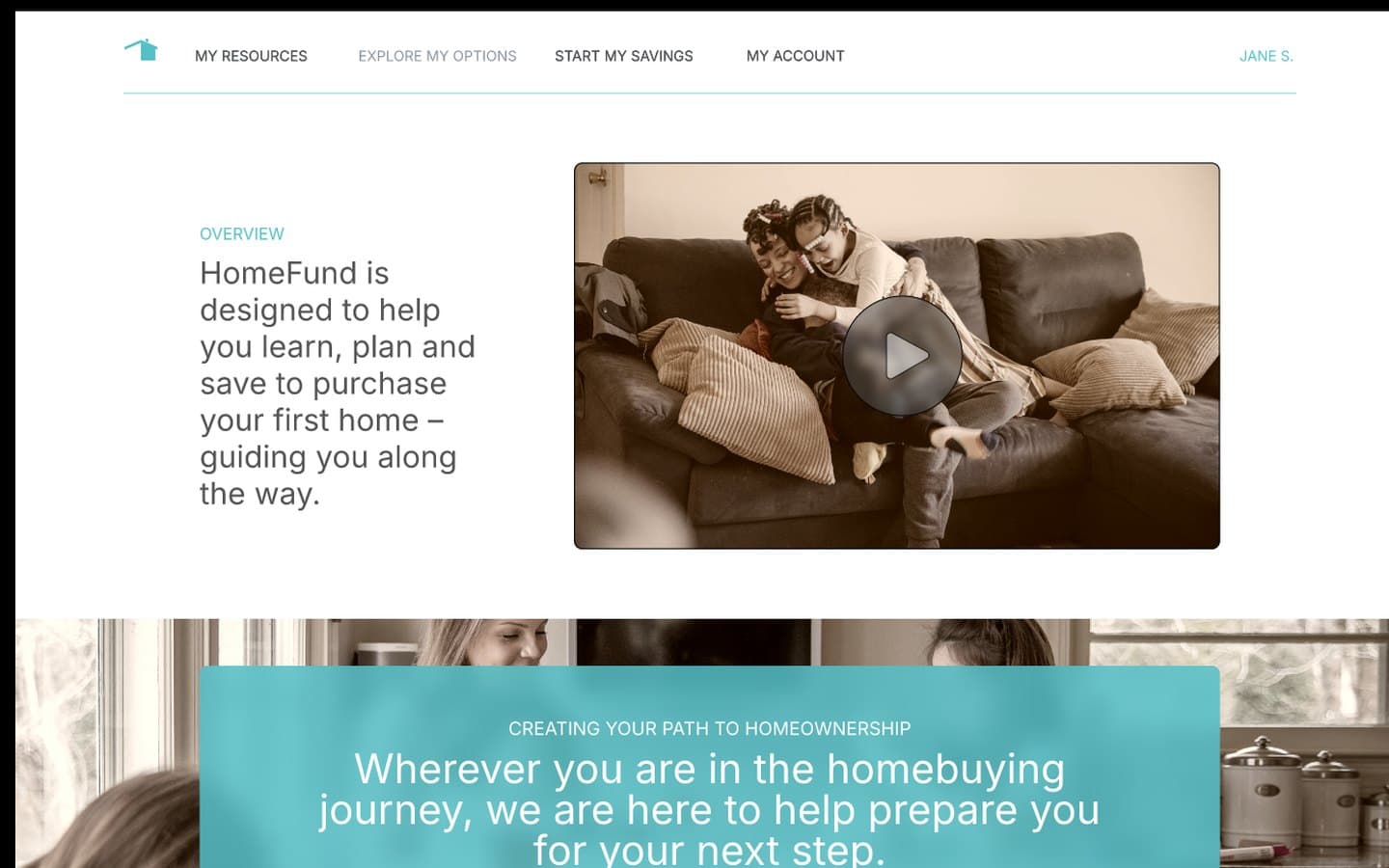
Early concepts organised HomeFund around four menu paths: My Resources, Explore My Options, Start My Savings and My Account. Each made sense on its own, but together they asked people to guess where a task lived.
The design follows the order people move in. Learn how buying works, plan what you can afford, then save toward it. My HomeFund holds everything that comes after.
Learn
- Guides in plain language
- The 8 steps to buying
- Glossary and FAQs
Plan
- What can I afford?
- How much do I need to save?
- Rent or buy
Save
- Savings plan from each paycheck
- Employer match and round-ups
- A clear confirmation
My HomeFund
- Balance and progress
- Readiness checklist
- Counselor sessions
A palette that reads for everyone.
HomeFund pairs a light, friendly teal with a deep navy, and Work Sans with Cormorant for display headings.
Light Blue measures 2.2 to 1 against white, well short of the 4.5 to 1 that WCAG AA asks of body text, so it is kept for illustration, charts and large tinted surfaces. A deeper Teal Ink carries anything people read or press, at 5.0 to 1.
Light Blue on white: decoration only
Teal Ink on white: text, links and buttons
Navy, for headings
Smallest body text, on every screen
A home page that starts with the goal.
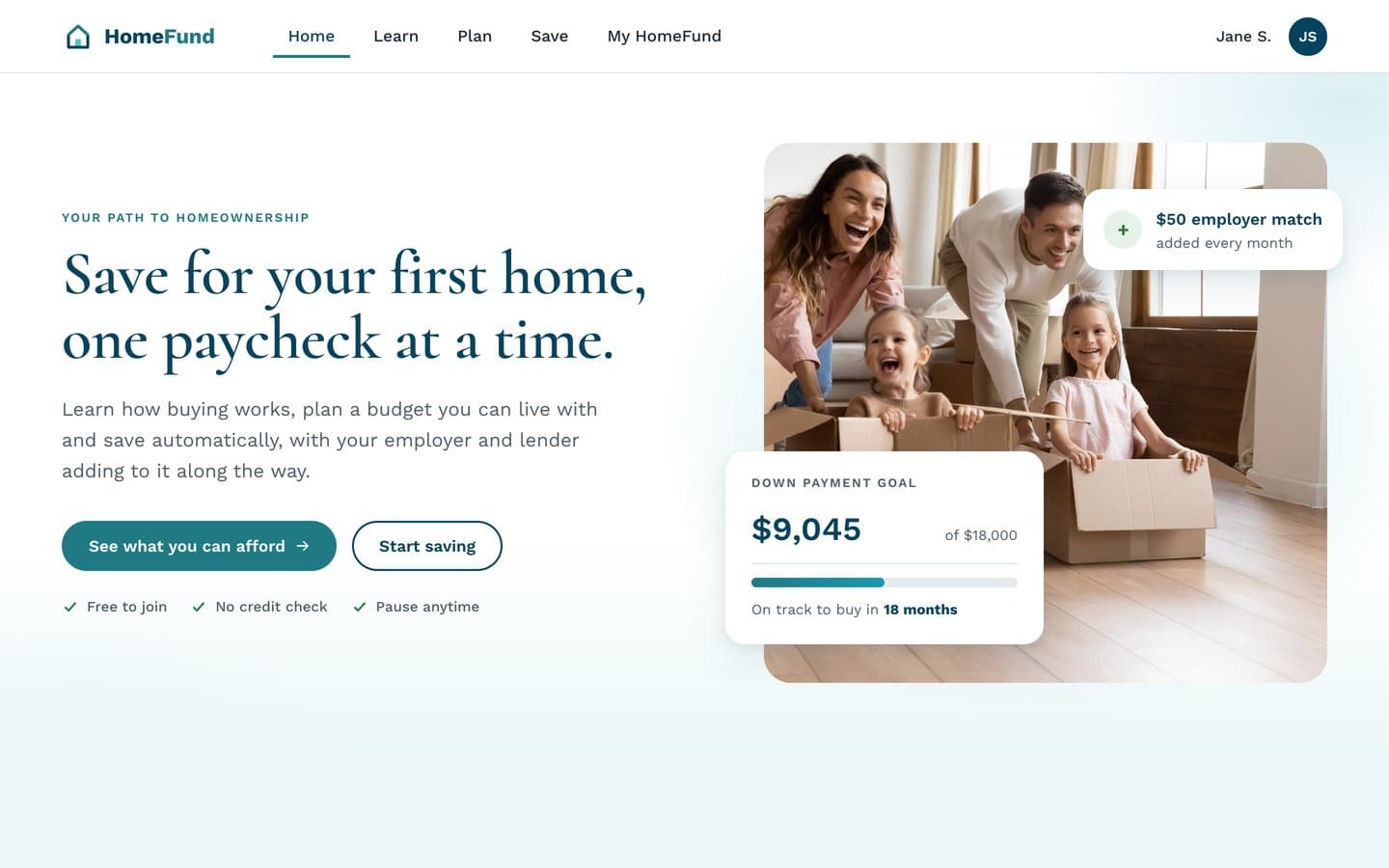
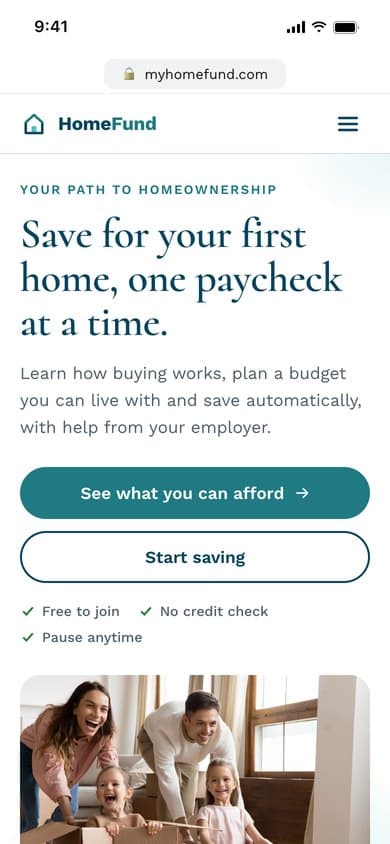
The home page leads with the promise and two clear actions, then answers the three worries people bring with them: cost, credit and commitment. A savings card shows what progress looks like before anyone signs up.
Soft teal light pools behind the photo and fades into the next section. It keeps the page warm without putting colour behind the text, and every line of copy over it still measures at least 4.5 to 1.
Calculators that answer as you move.
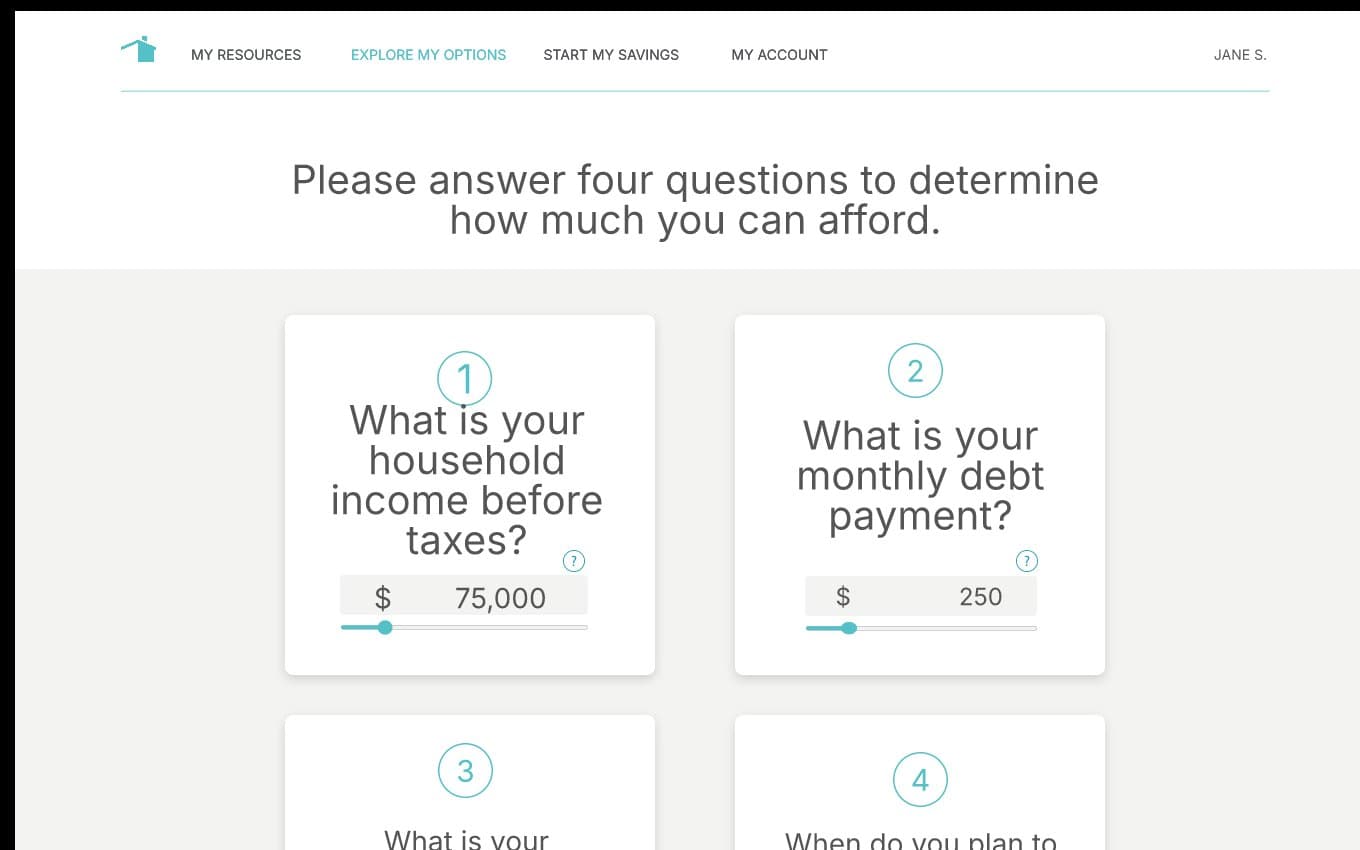
The first concept asked four questions in four cards and gave its answer after you submitted. The design sets the questions and the answer side by side. Move a slider and the price, the monthly payment and its breakdown update in place.
Answer in place
Results live in a polite live region, so people using a screen reader hear the new price as the slider moves.
Show the reasoning
A comfort scale marks the price as comfortable, a stretch or too high, and the three lender rules behind it are written in a sentence each.
One next step
Every result ends at the same button: turn this number into a savings plan.
A savings plan that does the math.
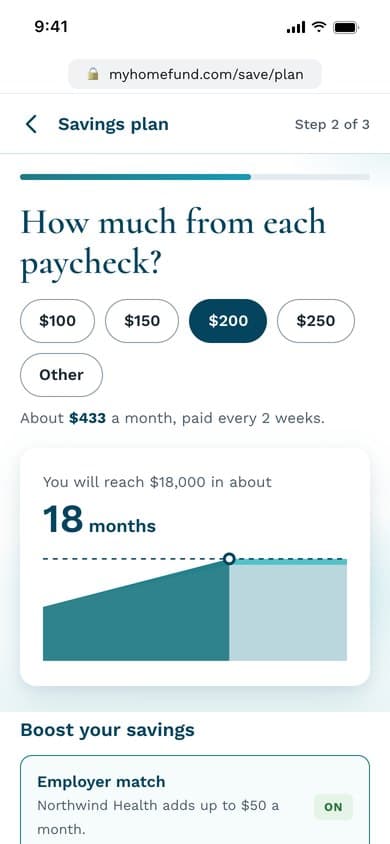
In the prototype, setting up a payroll deduction meant typing an amount and choosing an end date. The design lets people pick an amount per paycheck from a few sensible options and see straight away how many months it will take to reach their goal.
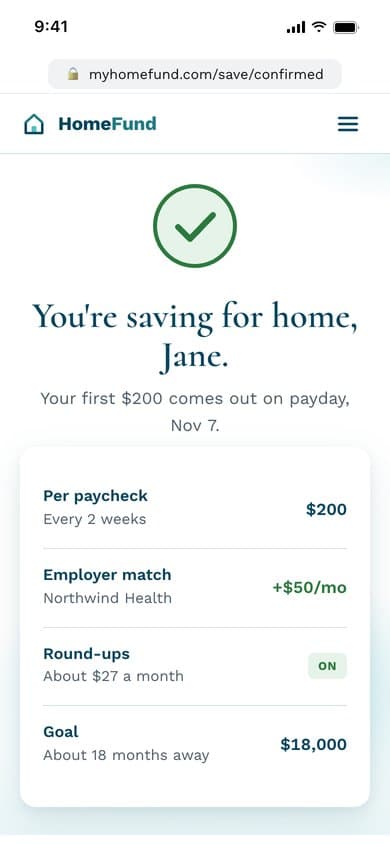
The employer match and round-ups show what they add, and the confirmation says exactly when the first deposit lands.
Three screens for after the first deposit.
Enrolment is only the start. Three screens keep people moving toward a purchase once the saving runs on its own.
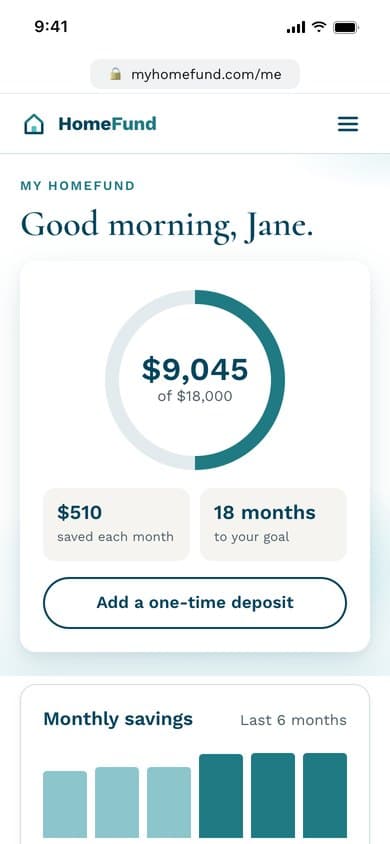
My HomeFund
Balance, progress to the goal and where each dollar came from, at a glance.
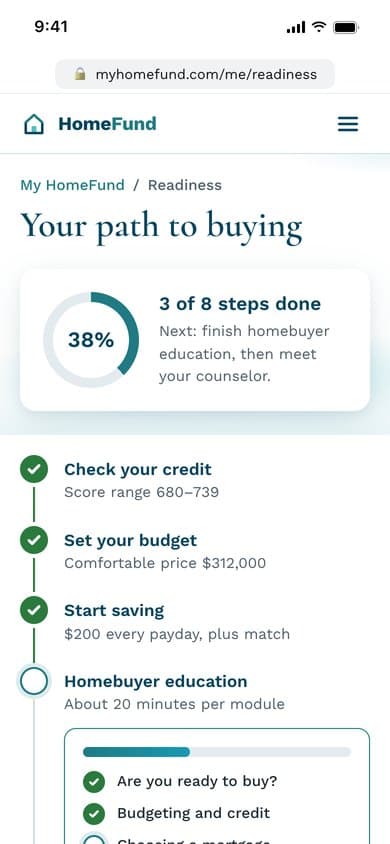
Readiness checklist
The 8 steps to buying, as a personal checklist with the next action spelled out.
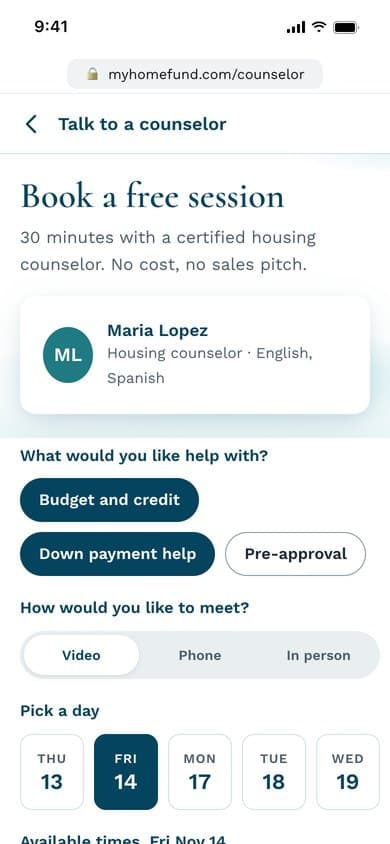
Counselor booking
Free one-on-one help, booked by video, phone or in person in a few taps.
Fewer styles, every state drawn.
As the concept grew, the working file collected 73 colour and fill styles and 50 text styles. The design system brings them down to 18 colour tokens and 8 type roles: Work Sans for the interface and Cormorant for display headings only.
Components carry their states with them. Hover, focus, disabled, error and success are designed once and reused everywhere.
Colour tokens, from 73 styles
Type roles, from 50 text styles
Button height, desktop and phone
Focus ring on every control
Sixteen phone screens, one system.
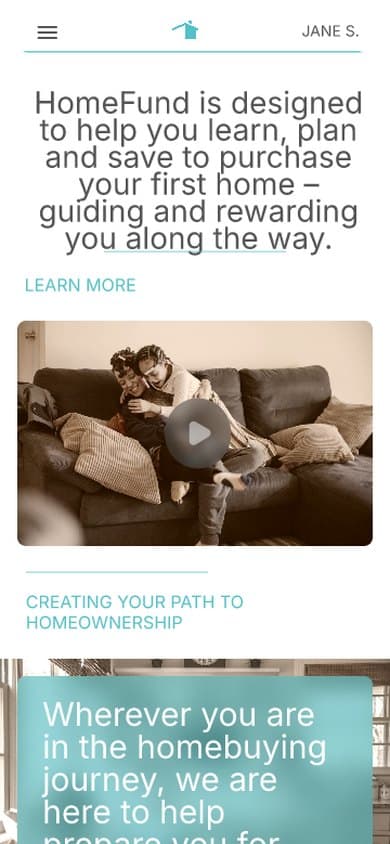
Every screen was designed at phone width alongside desktop, with full-width buttons, tap targets of 44px and up, and a header that stays in reach. Sign-up and the savings plan show their step and a back button, and nothing depends on hover.
Accessible by default, not by audit.
Contrast
All text at 4.5 to 1 or better, measured over the hero glow as well as plain white.
Targets
Buttons, chips and menu rows are 44px or taller; main buttons are 52px.
Focus
A visible 3px ring, white then Teal Ink, so it shows on any background.
Labels
Labels sit above fields; hints and errors are written out, never shown by colour alone.
Language
Plain words throughout, with lending terms explained where they appear.
Structure
A skip link, landmarks and the current page marked in the menu.
From first question to front door.
HomeFund went from an idea to a tested concept: one path to learn, plan and save, calculators that answer as you move, a savings plan that runs itself, and a system built to meet Section 508 and WCAG 2.2 AA from the first token.
Screens, desktop and mobile
Colour tokens
Type roles
Contrast for text and actions