Investment decisions start in documents nobody wants to retype.
An investment team lives on a handful of numbers per building: occupancy, rent, income against budget, and when each lease ends. Those numbers come from rent rolls, ledgers and leases, which arrive as spreadsheets, exports and scanned PDFs.
Pereview brings the assets, the leases, the financing and the ownership structure into one platform. The hard part is getting the data in, and then trusting it once it is there.
One view across four parts of the platform.
I worked across the platform rather than on one feature, which meant the asset pages, the stack plan, the import tools and the AI flow had to read as one product.
That shaped most of the decisions here. A status, a confidence score or a date looks and behaves the same wherever it appears.
Asset pages
- Overview, KPIs and charts
- Stack plan by floor and suite
- Leases, documents and workflows
Data in
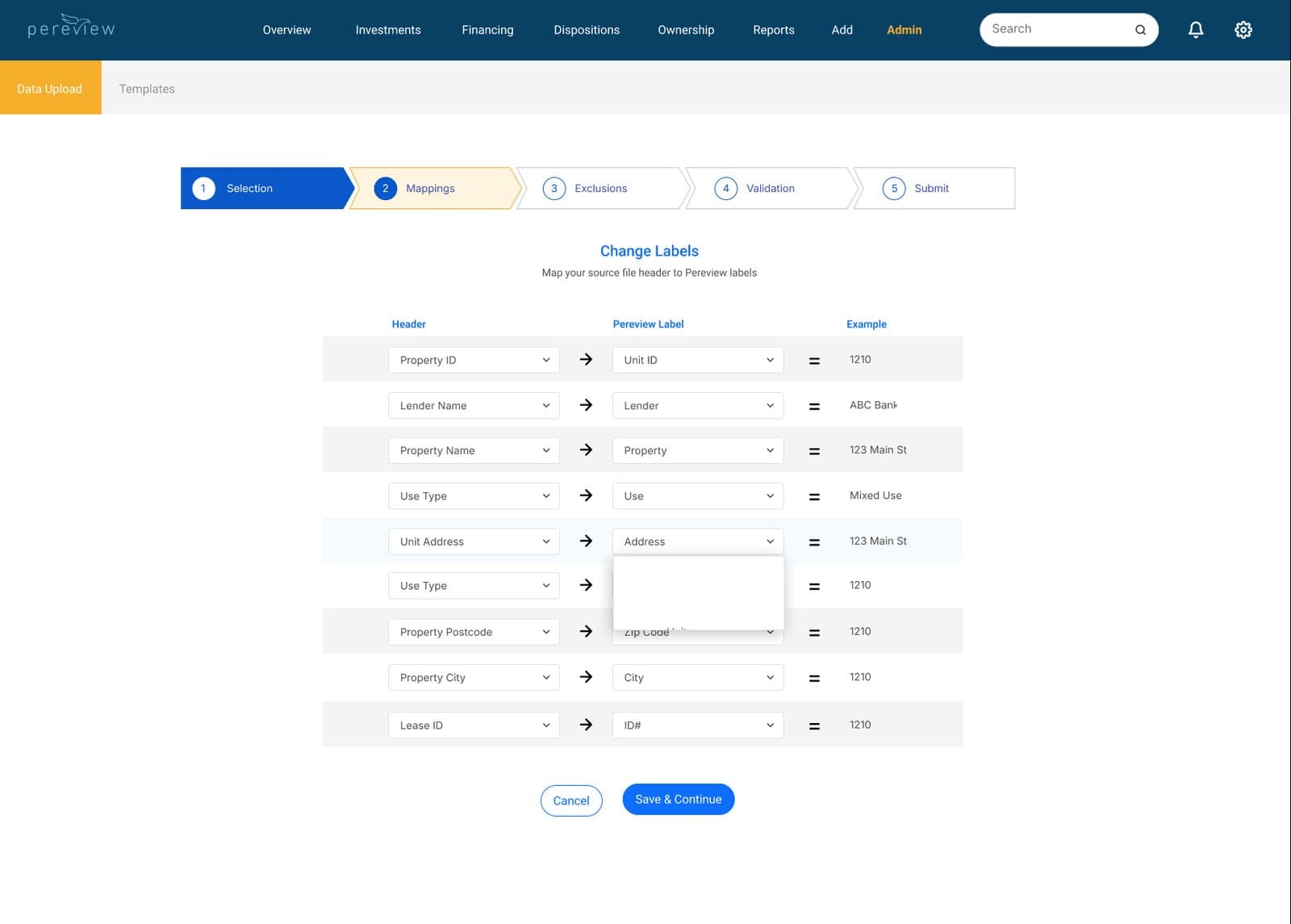
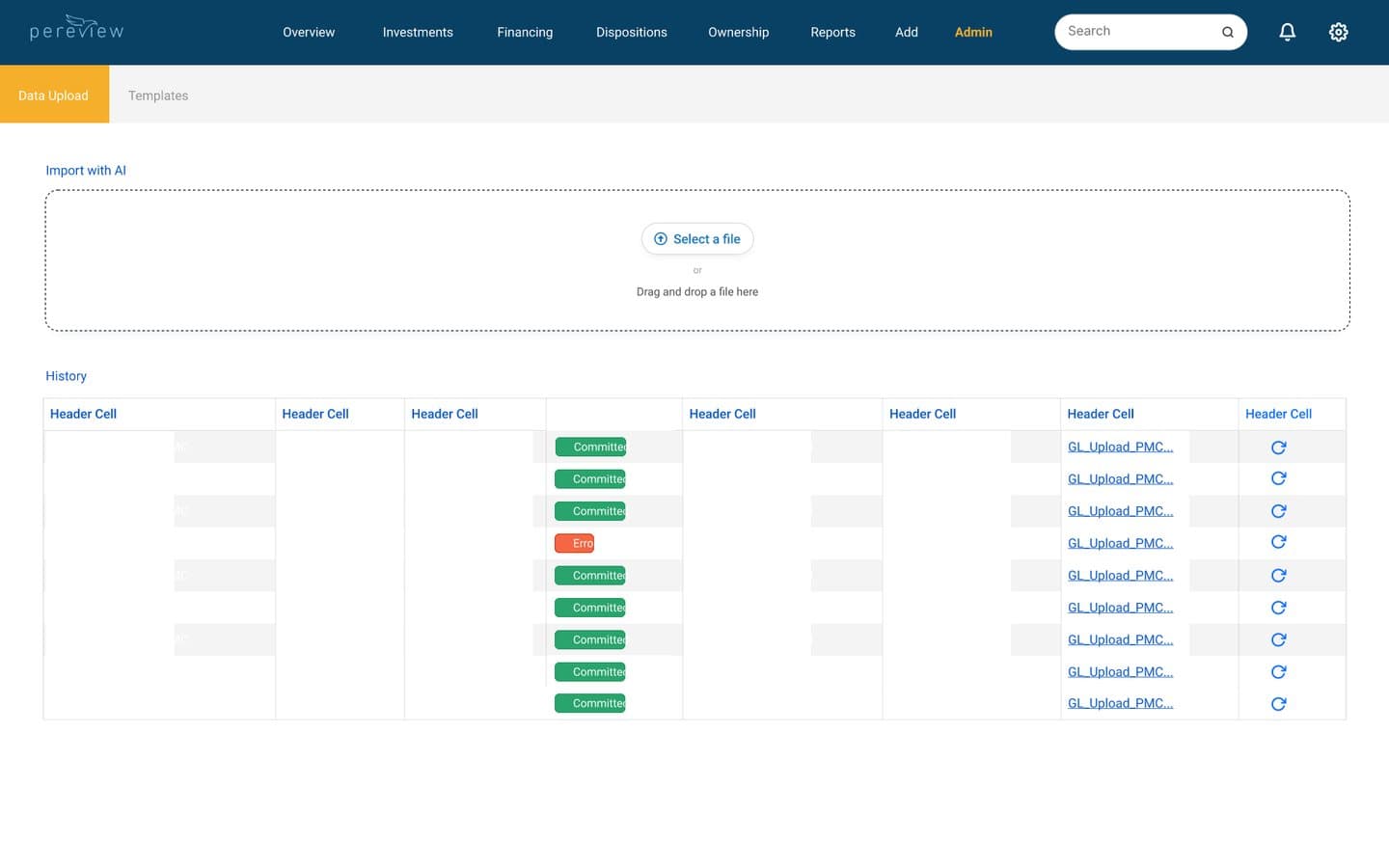
- Spreadsheet import and mappings
- Rent roll and ledger history
- Saved templates
AI abstraction
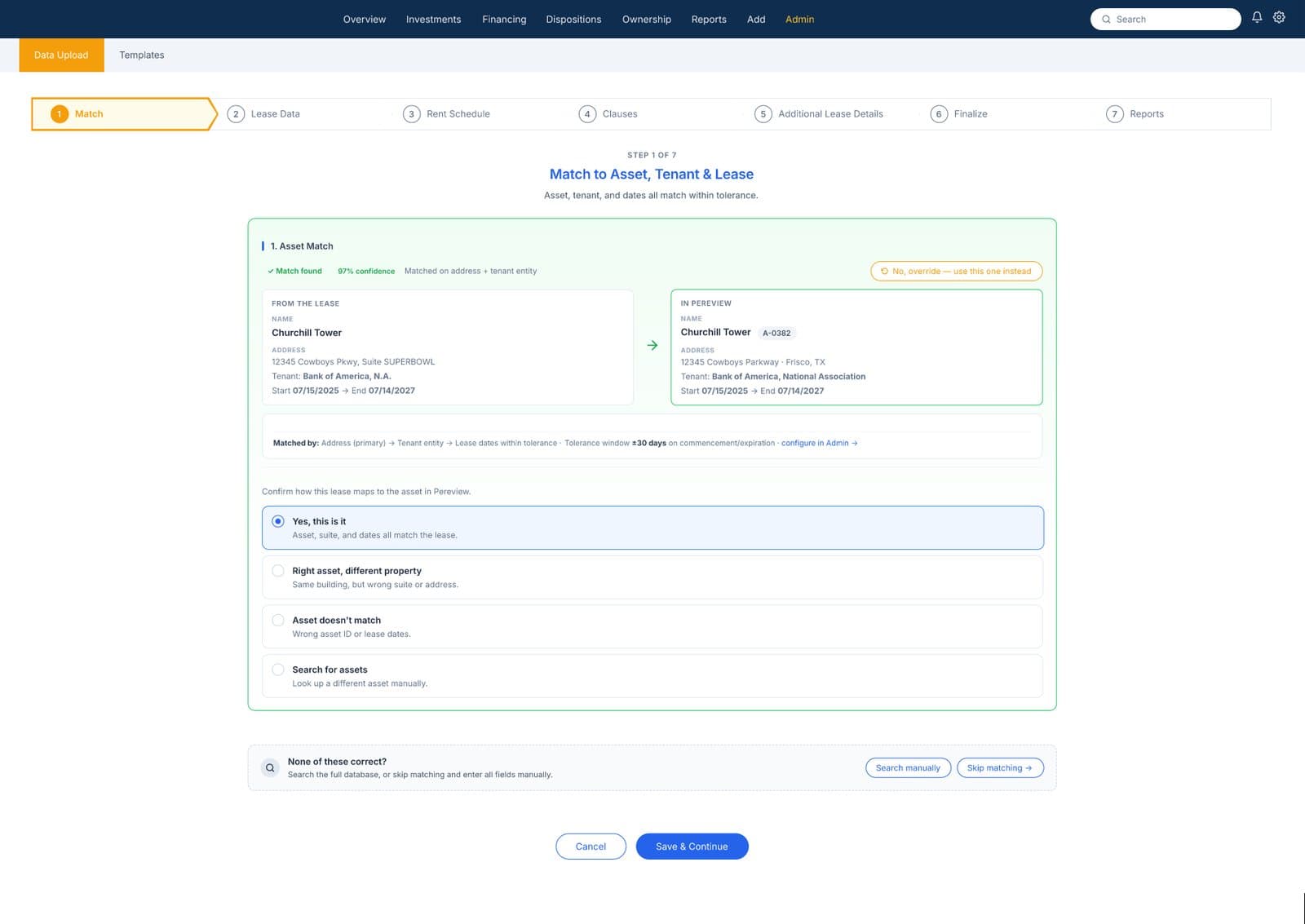
- Upload, classify and match
- Review extracted fields with their source
- Reconcile and schedule critical dates
Good bones, and a lot left for the user to work out.
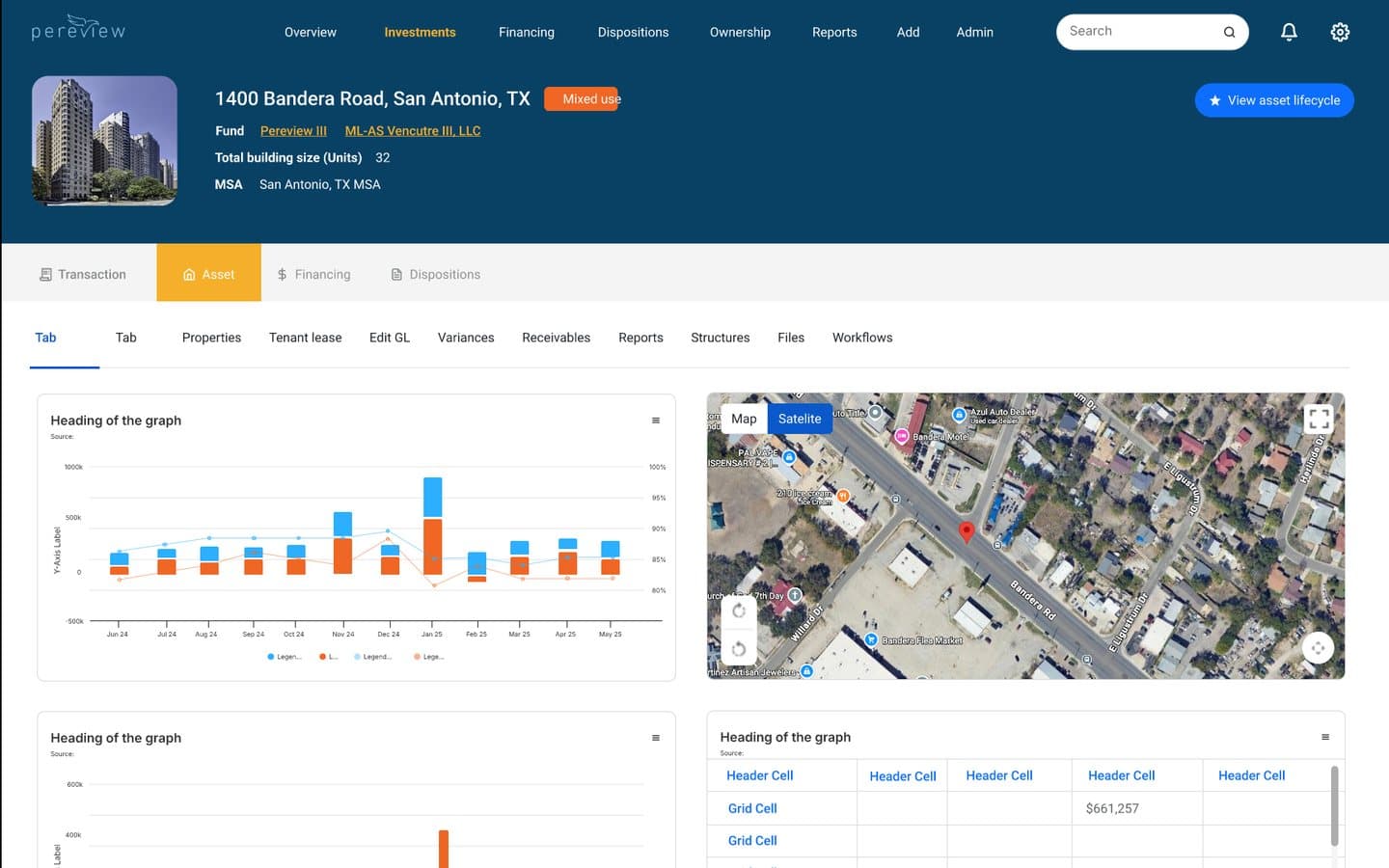
The platform already had the right parts: a clear navy app bar, consistent tables, and a step-by-step import. Reading the screens closely, the work was mostly in what they left people to figure out.
Finding things
- Eight items in the top bar, with Add and Admin beside the places to go
- A second row of up to eleven tabs on each asset
- Charts laid out before their questions were settled
Reading things
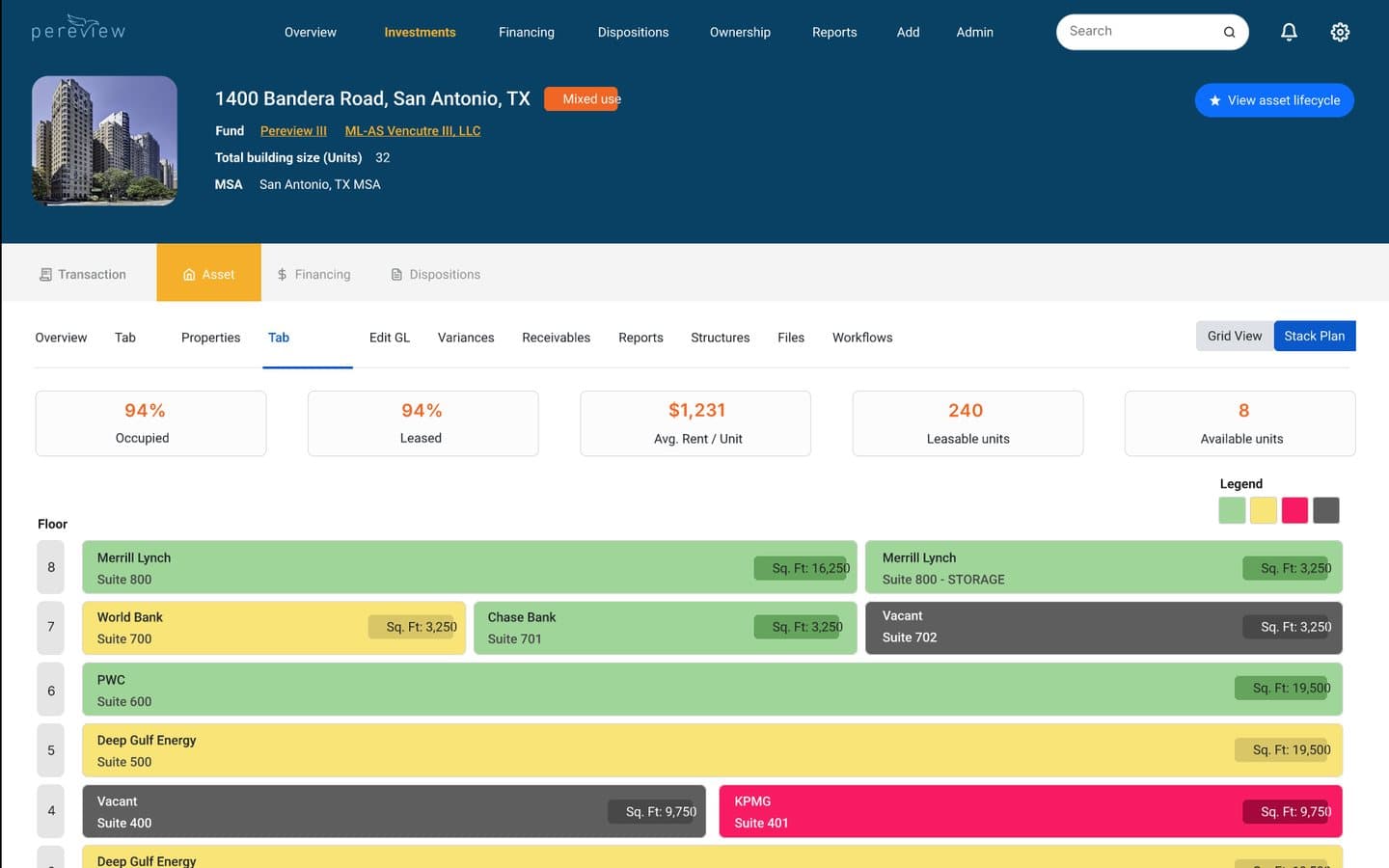
- A stack plan legend of four colours with no labels
- A white-on-orange badge at 3.2 to 1
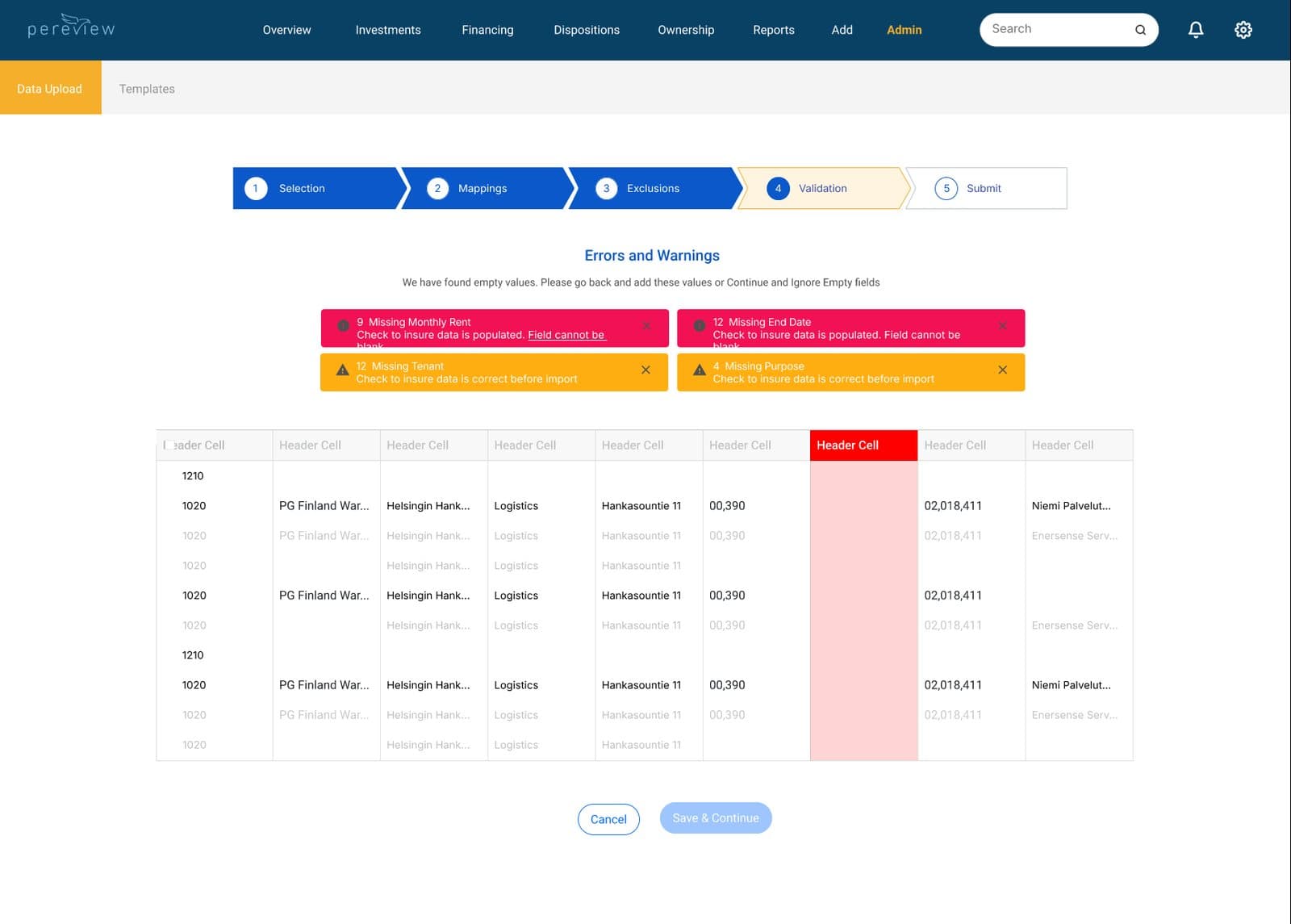
- Errors in banners that cut off mid-sentence
Doing things
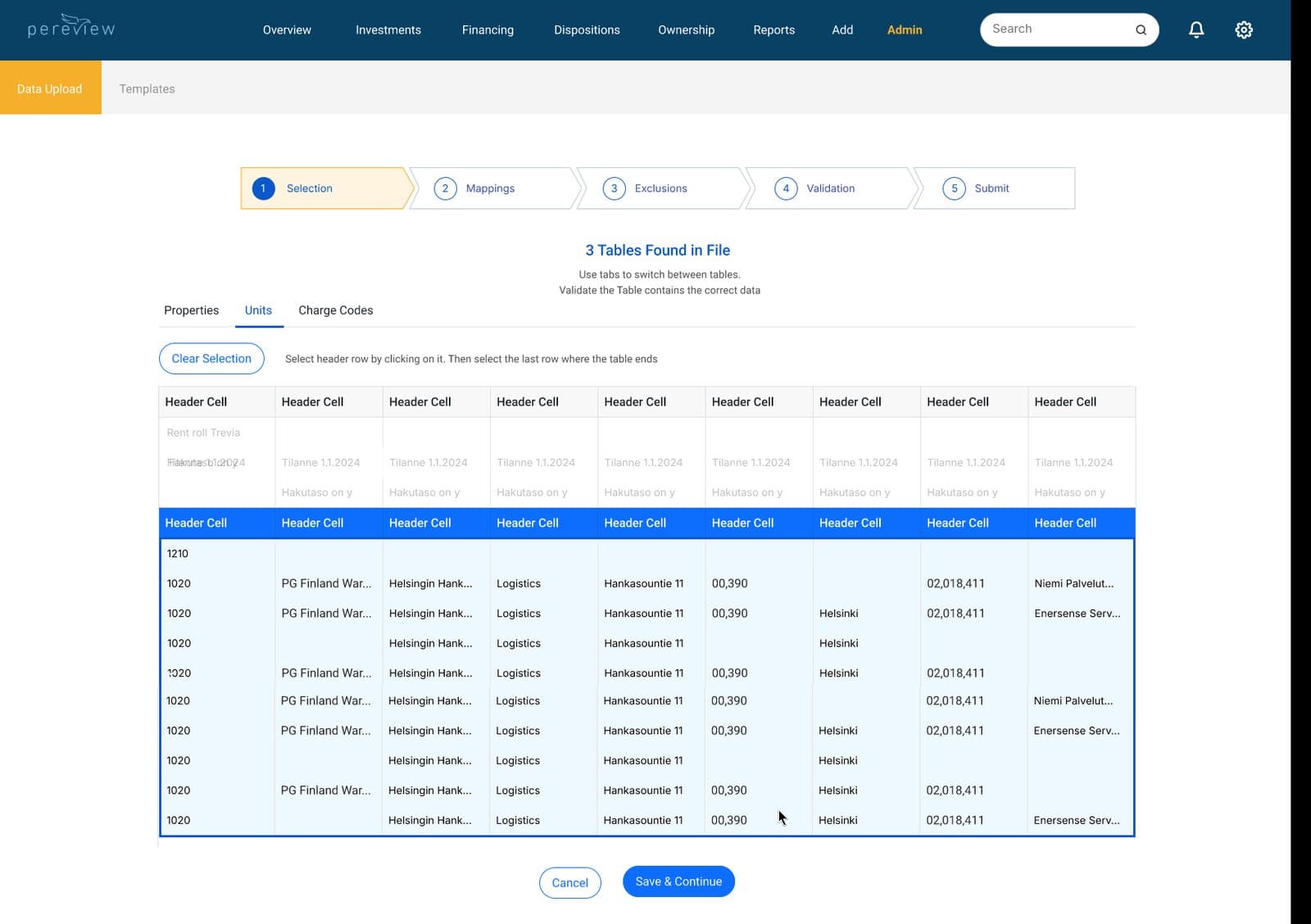
- "Select header row by clicking on it" before an import could start
- Save & Continue on every step, whatever it did
- Extracted values linked to the lease by section, not by line
Four rules for data people have to sign off on.
Show the source
Anything the AI extracted links to the clause and page it came from. Nobody should have to trust a number they cannot check.
Say it in words
Status is an icon and a word, never a colour alone. Committed, 6 to review, Missing account map.
Let numbers line up
Tabular figures, right-aligned amounts and units beside every value, so columns can be scanned.
One current step
Long flows show where you are, what is left and what will happen when you continue.
An overview that answers the first five questions.
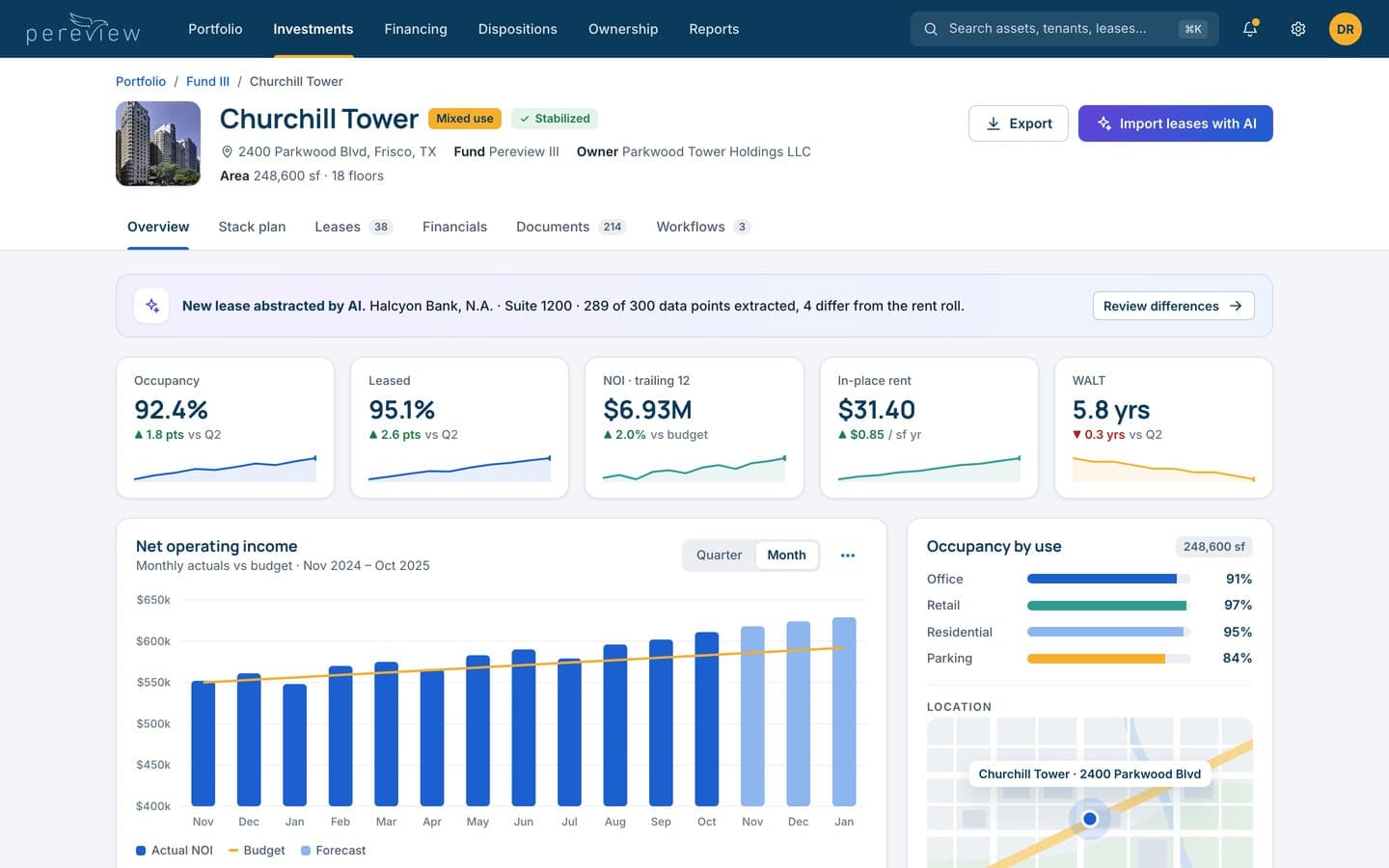
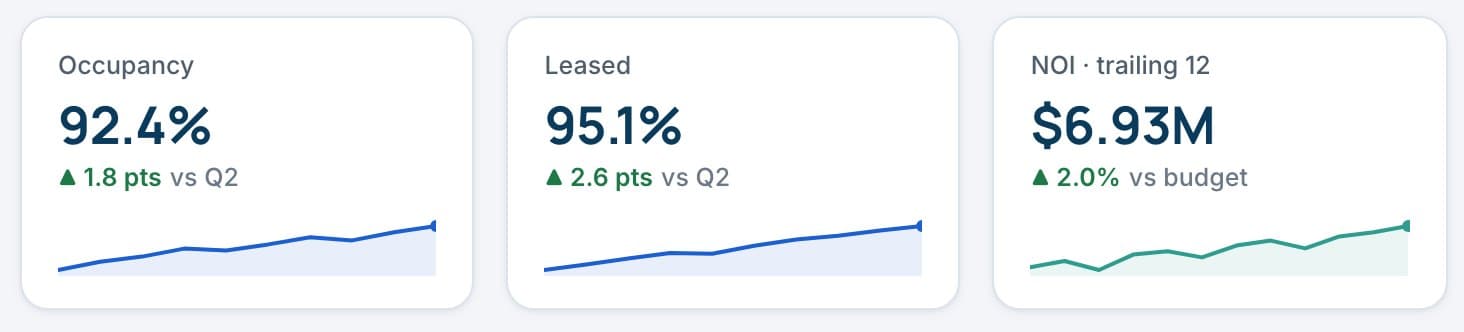
The overview now opens on the numbers an asset manager asks about first: occupancy, leased, net operating income, in-place rent and weighted lease term. Each tile shows its trend and what it is compared against.
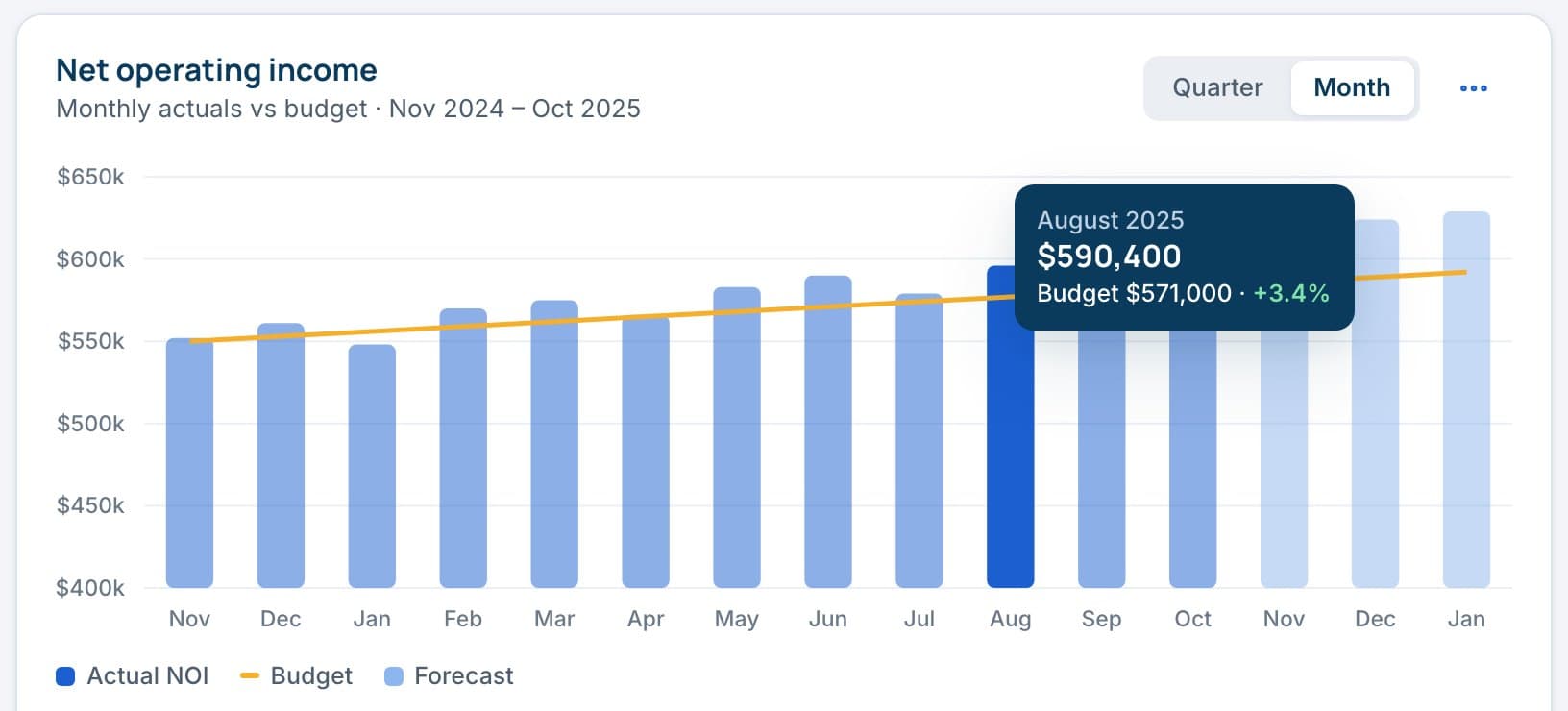
Below them, every chart states its question in the title, labels its axes and units, and explains itself on hover. Lease expirations are shown as a share of the building, with the heavy year called out in words.
Comparisons, not just values
Each KPI carries its change and what it is measured against: last quarter, budget or the previous year.
Charts with their question
Titles say what the chart answers. Axes, units and legends are always labelled; the tooltip gives the exact figure.
New data announces itself
When the AI abstracts a lease for this asset, a notice at the top says what changed and links straight to the differences.

Colour that means a year.
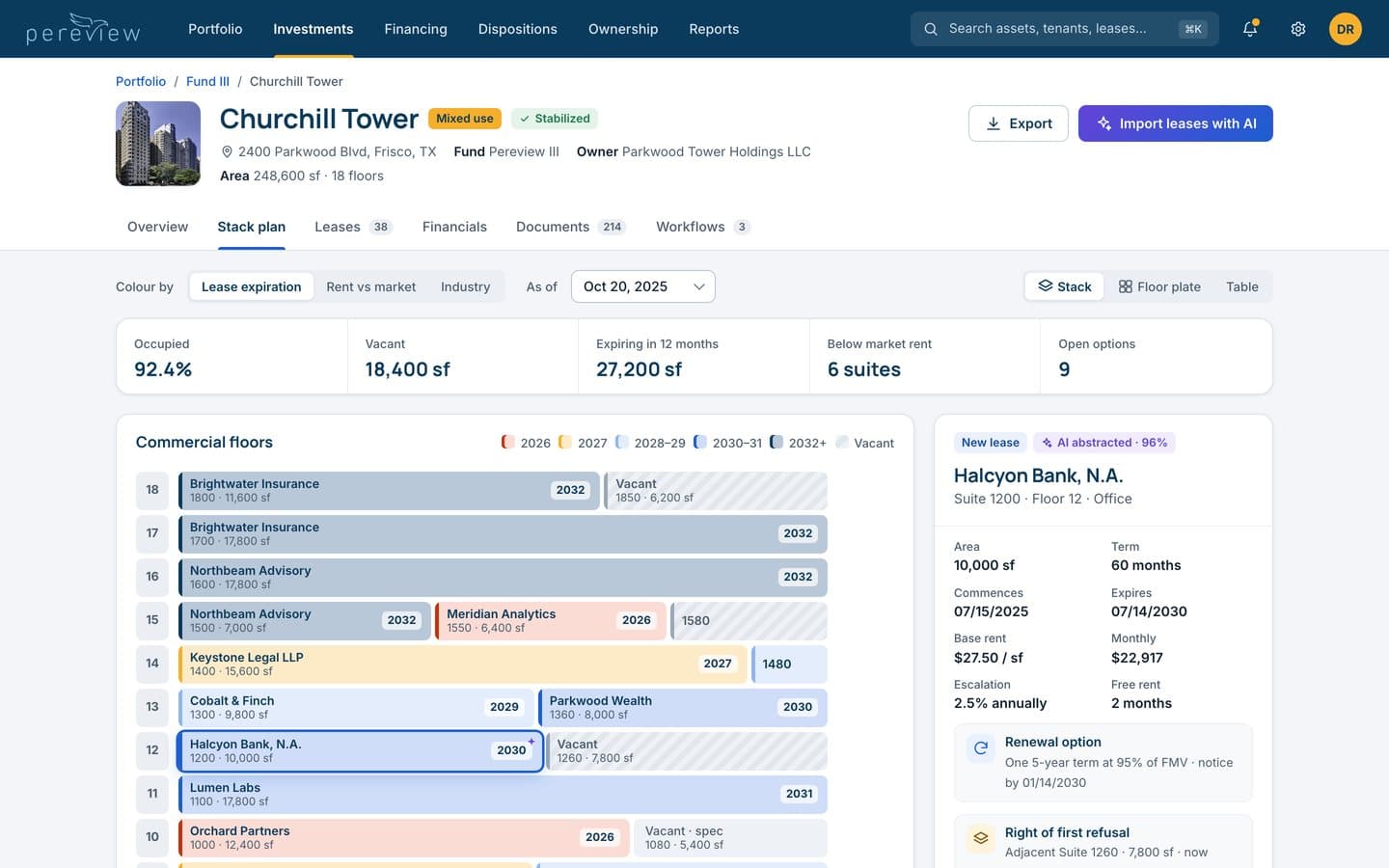
The stack plan shows every floor and suite in the building. In the original, four colours marked the suites and the legend had no labels, so the colours had to be remembered.
The redesign colours each suite by the year its lease expires, from 2026 in coral to 2032 and later in navy, with vacancy hatched. Every suite carries its year in text as well. Selecting one opens its terms and options beside the stack.
Four steps the AI takes, one the team takes.
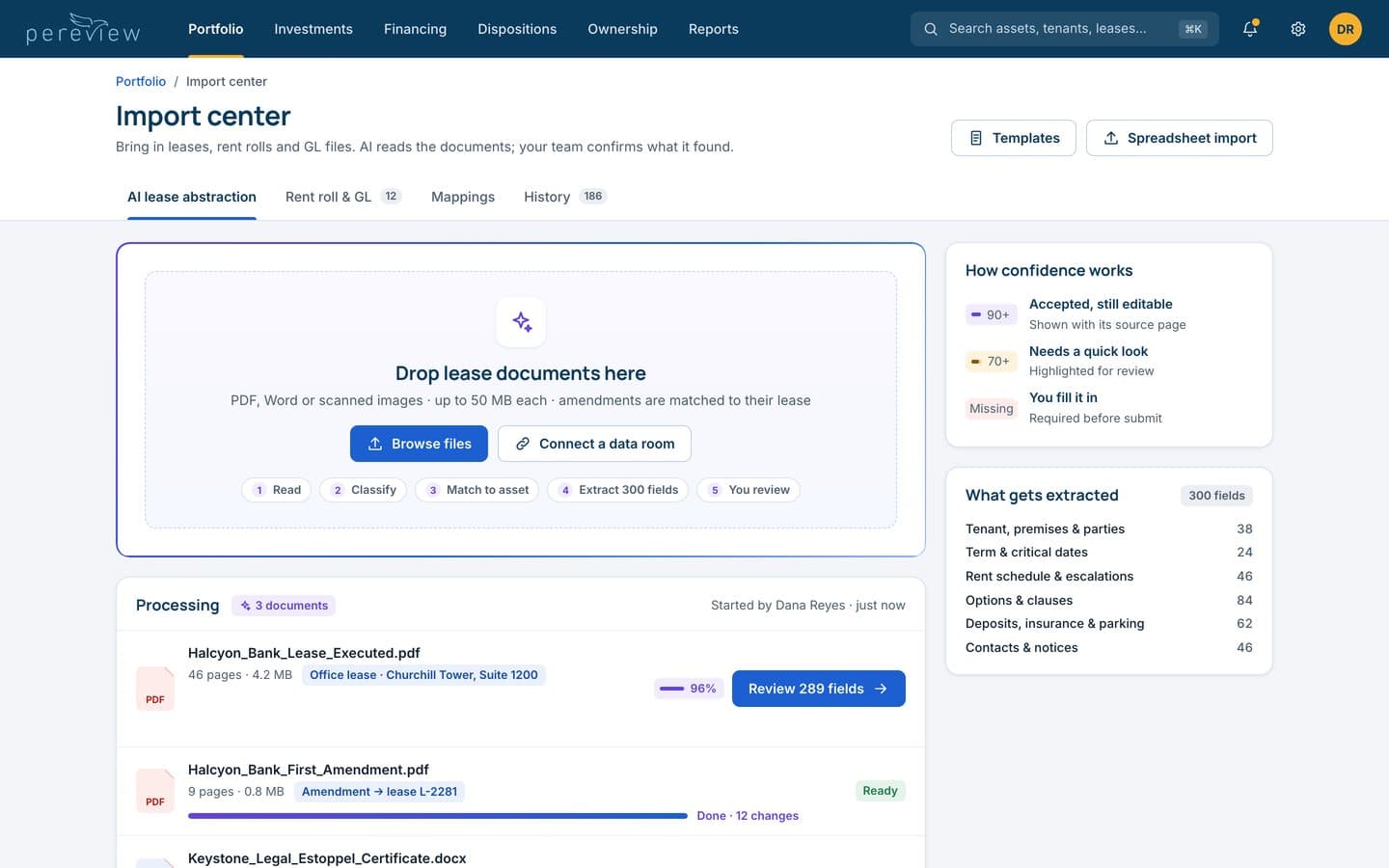
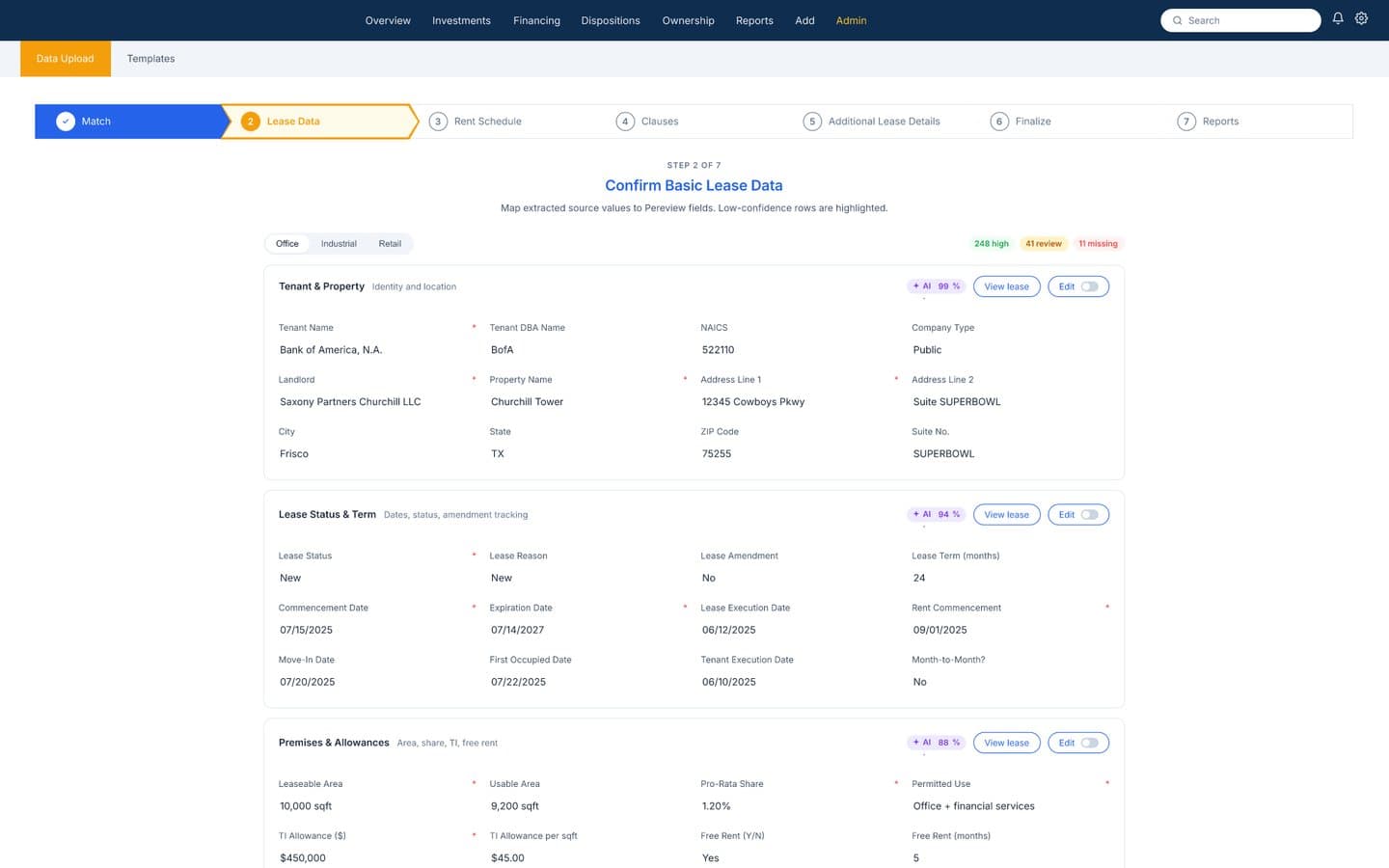
Leases come in as PDFs, Word files and scans. The import center shows each document moving through the same pipeline: read, classify, match to an asset, extract, then hand to a person for review.
Confidence is explained once, on the same screen: 90% and up is accepted but still editable, 70% and up needs a quick look, and missing values must be filled in before anything is submitted. The history below says what happened to every file in words.
Every value keeps its receipt.
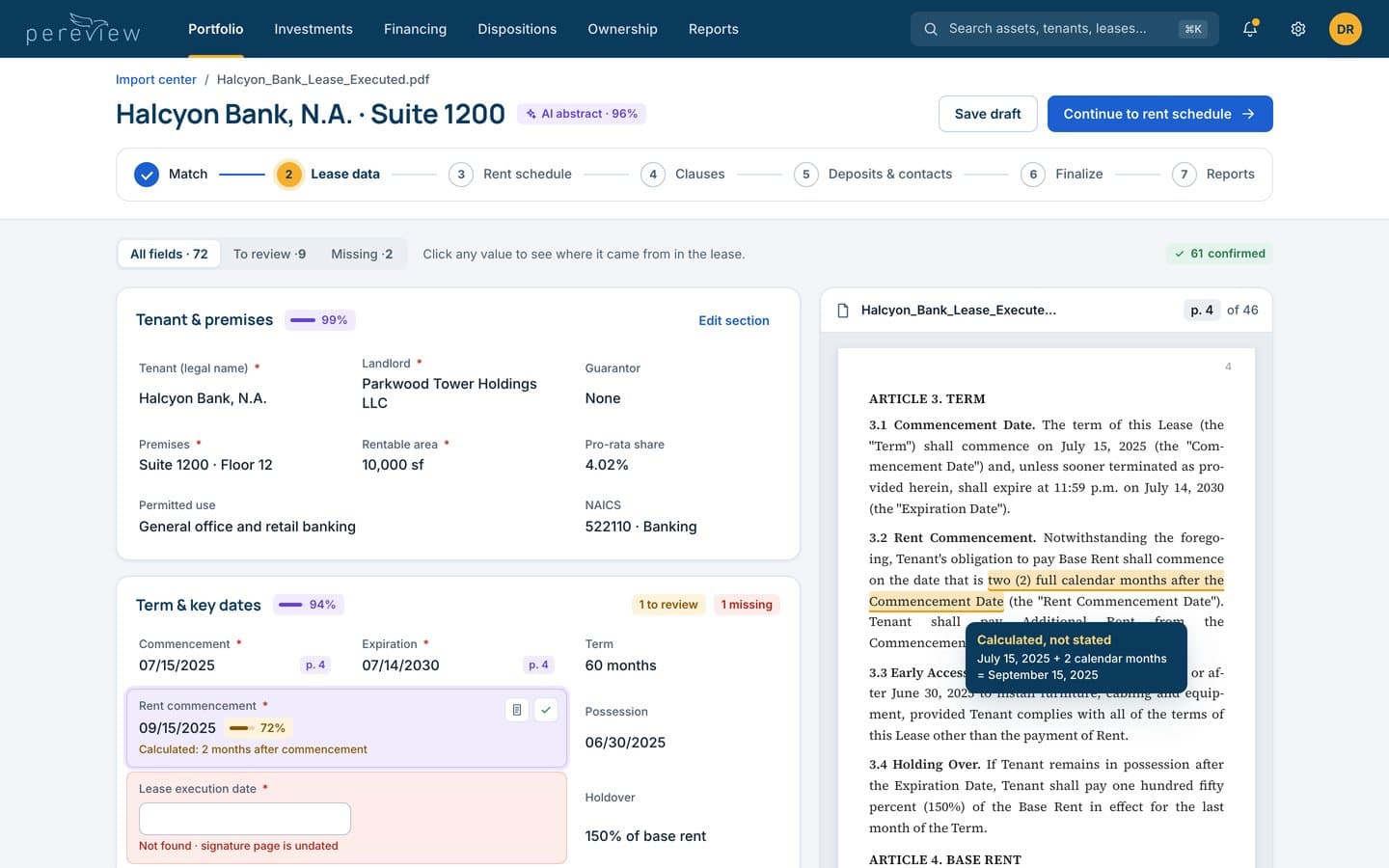
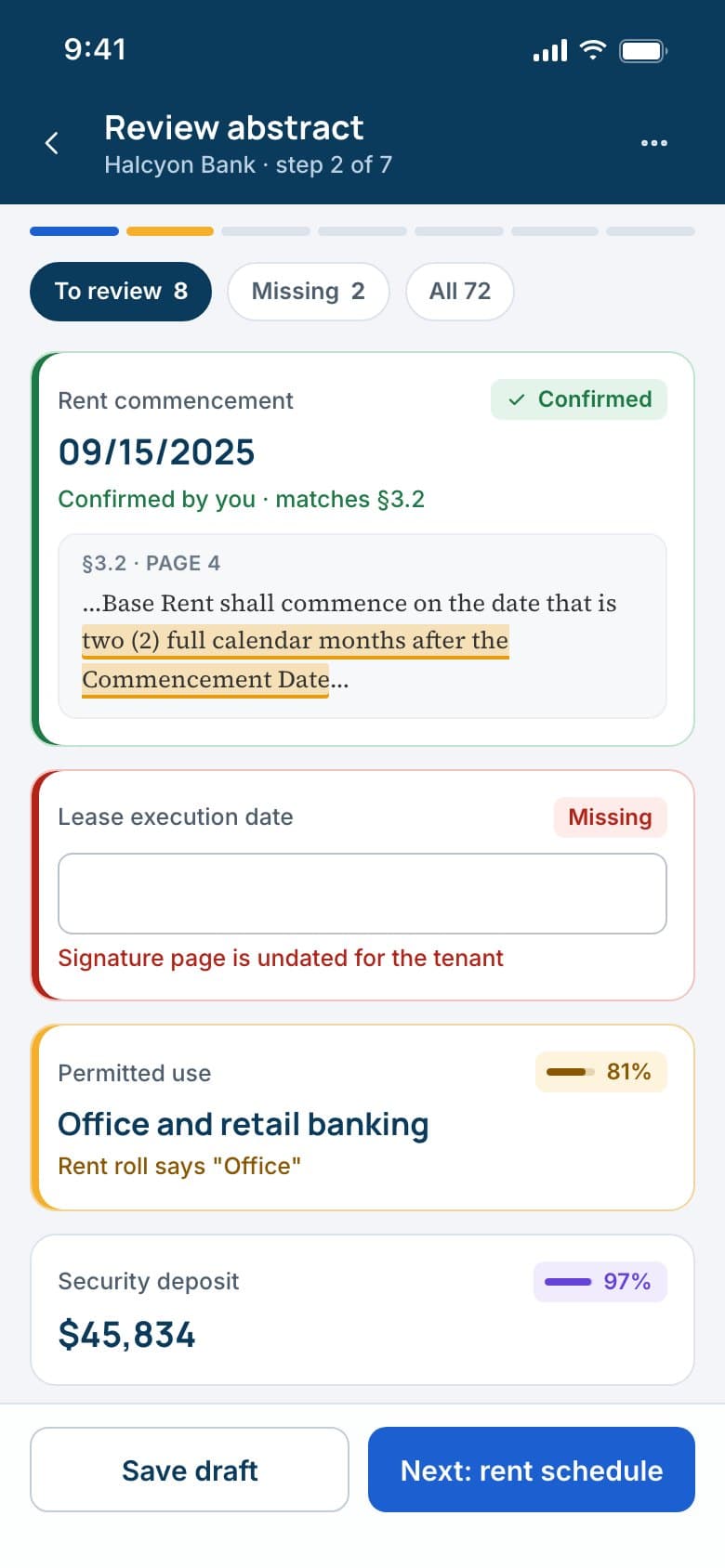
Reviewing an abstract is where trust is won or lost. The lease now sits beside the fields. Click a value and the document opens at the clause it came from, highlighted.
Values the AI worked out rather than read, like a rent start date set two months after commencement, are flagged as calculated and show the arithmetic. Missing values are typed in with the page they came from, and the counts at the top fall as the team works.
Data points read from each lease
Steps from upload to reports
Standard clause types scanned
Tolerance when matching lease dates
Settle the differences, then set the reminders.
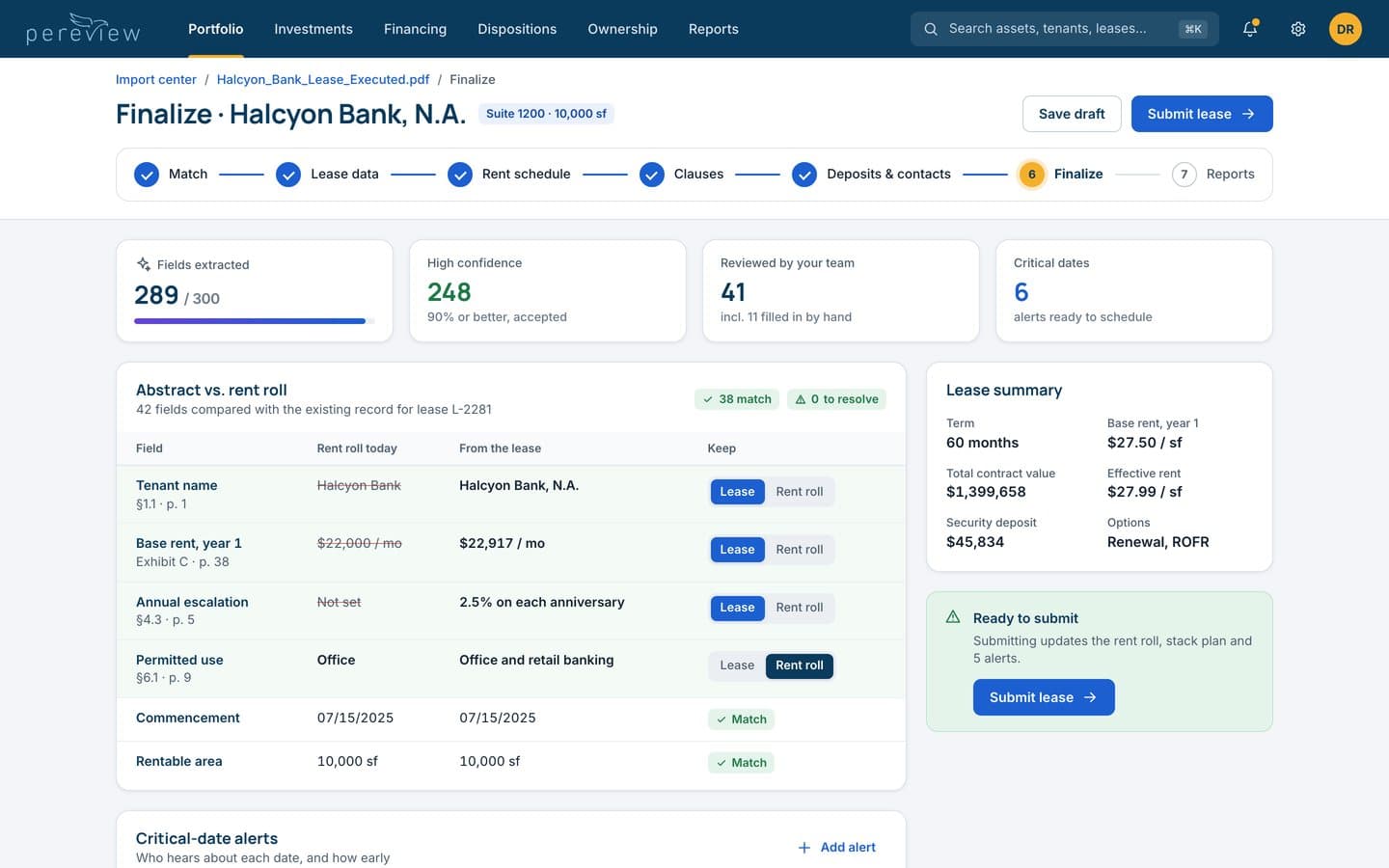
Before a lease is saved, the abstract is compared with what the rent roll already says. Matching fields stay quiet. Each difference shows both values and the clause behind the new one, and the team picks which to keep.
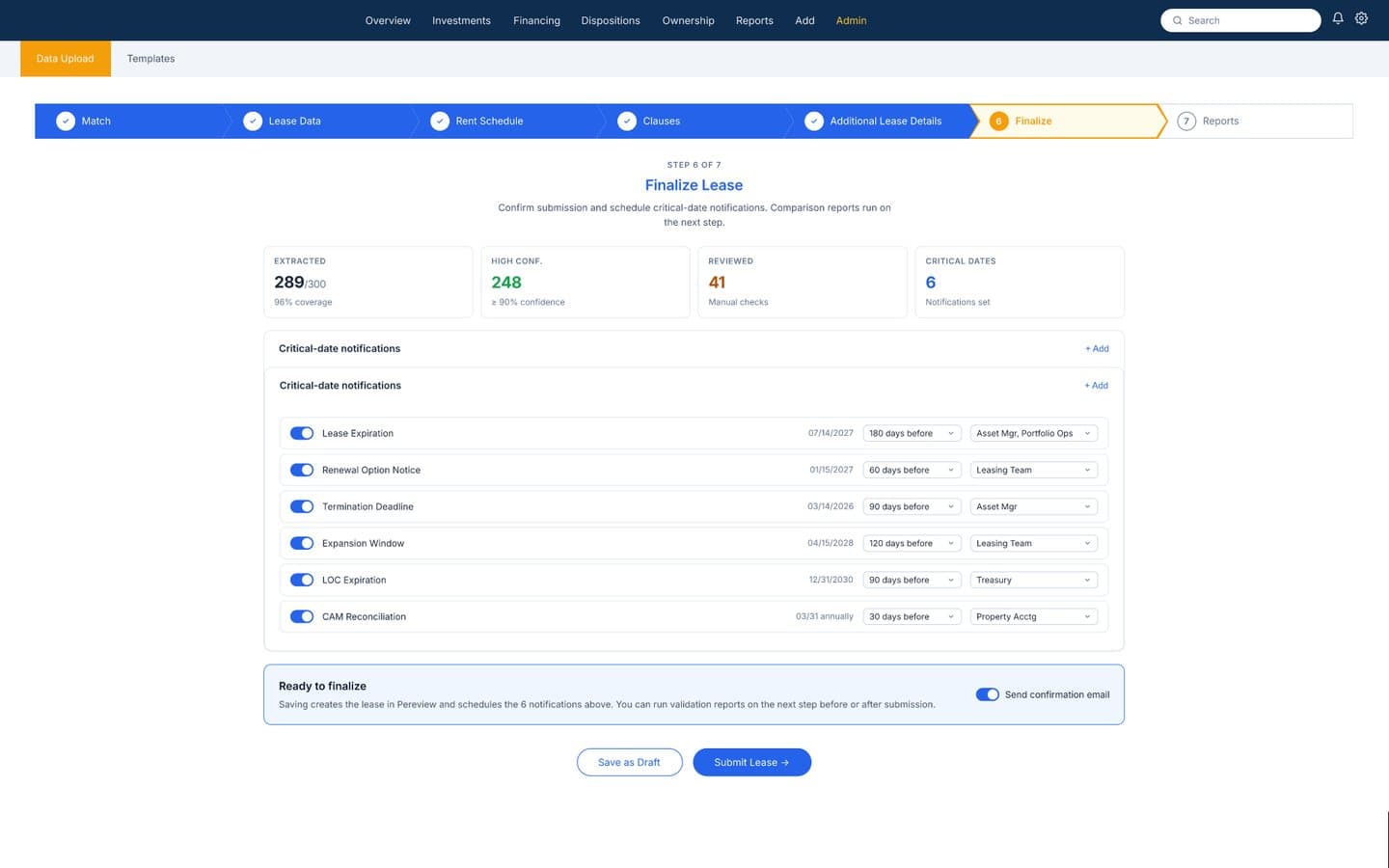
Submit stays disabled until every difference is settled, and a panel says what submitting will change. Critical dates, from rent start to renewal notice, become alerts with an owner and a lead time.
A system narrow enough to stay consistent.
The working file had 49 colour styles, 24 text styles, 68 effect styles and 476 variables, and text set in six typefaces. The system keeps Pereview's navy, amber and blue, and narrows the rest to 30 colour tokens and two interface typefaces: Manrope for headings and key numbers, Inter for everything else. A serif is kept for one job, quoting the lease.
Amber stays the brand accent but never carries text on white, where it measures 1.9 to 1. A violet is reserved for one meaning: this value came from the AI.
Ink blue on white, for every action
Amber on white: accent only, never text
Colour tokens, from 49 styles
Interface typefaces, from six
For the minutes between meetings.
The phone app does a few things well rather than everything: see what needs attention, check an asset, confirm a clause, settle a difference and keep track of dates. Floors become bars, tables become lists and the main action sits in reach of a thumb.
Fields with their clause
Each field shows the sentence it came from, with Accept and Edit beside it.
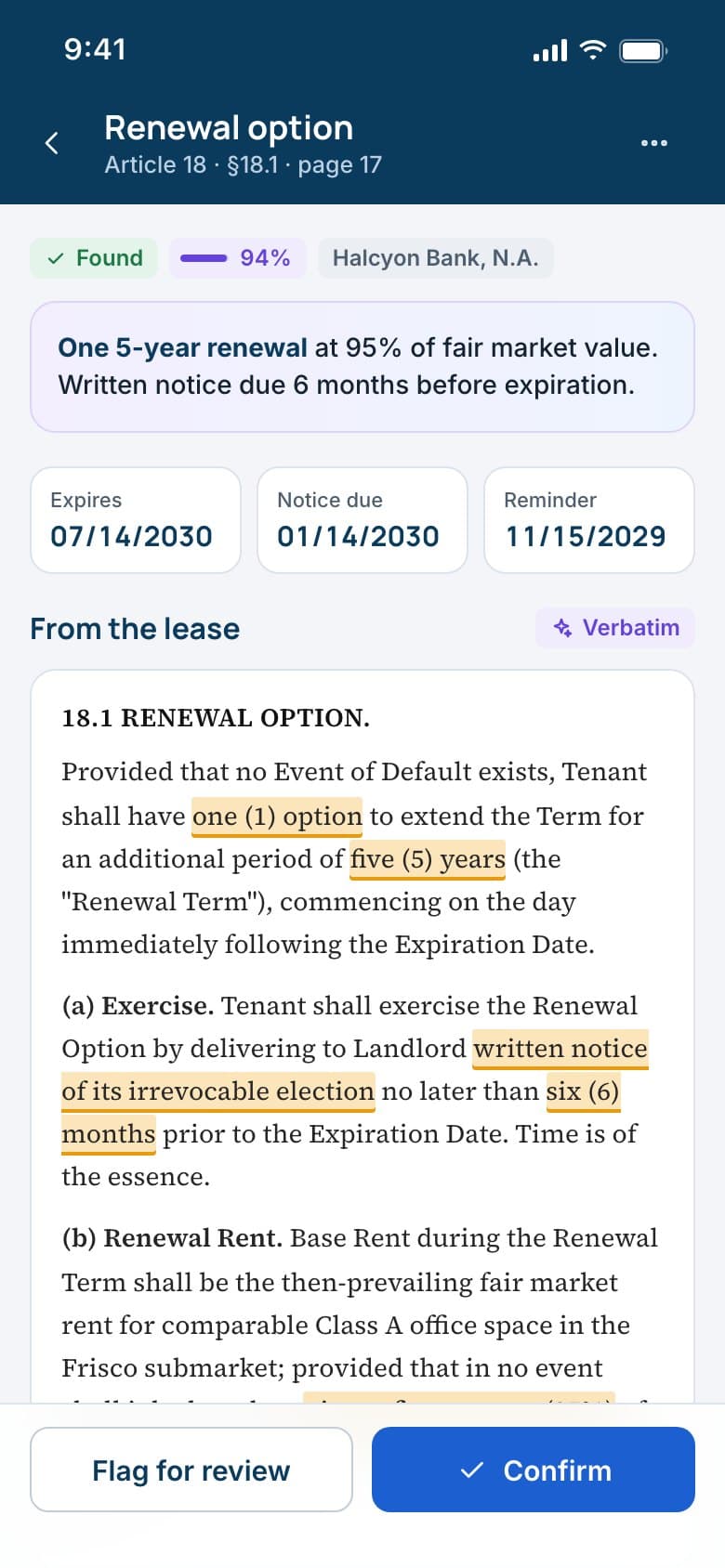
The lease, quoted
Key dates on top, the verbatim clause below with the terms that matter highlighted.
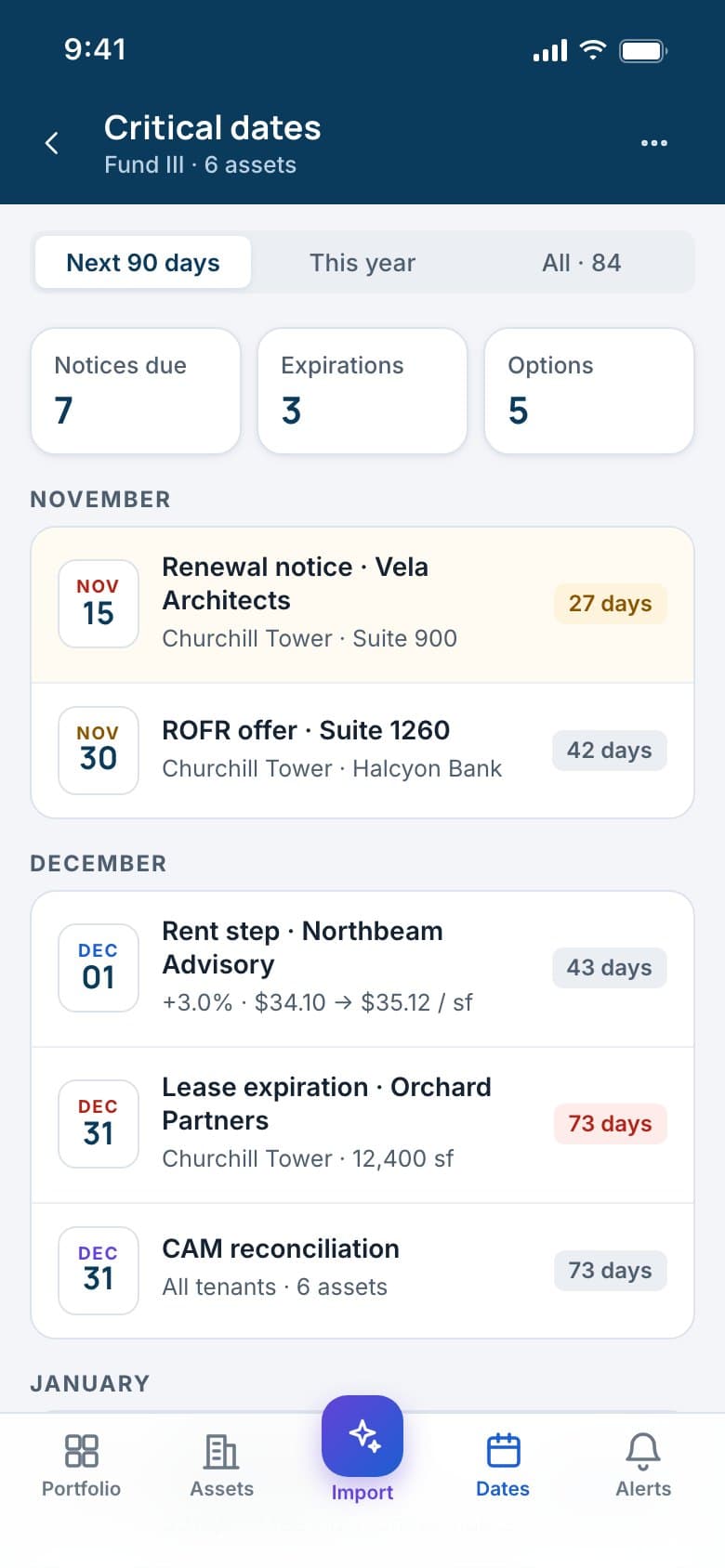
What is coming up
Notices, expirations and options across the fund, grouped by month with days remaining.
One platform, one way of showing what is true.
The redesign carries one idea through the platform: show people the source, the status and the next step. An asset page that answers questions, a stack plan that reads without a key, and an AI flow where every value can be traced back to the lease and confirmed by a person.
Screens, 5 desktop and 8 phone
Colour tokens
Interface typefaces
Contrast for every action